Publish on Warden
Overview
This guide explains how to publish and monetize your Agents on Warden using Warden Studio.
In Warden Studio, you can do the following:
- Register an Agent
- Monitor your Agent
- Manage your Agents
- Manage your account
Prerequisites
Before you start, complete the following prerequisites:
- Build an Agent with Warden Code
- Host your Agent
- Note down your public API URL and the Agent API key
- Optionally, prepare a publicly hosted image for your Agent
Publish an Agent
First, sign in to Warden and fund your account. Make sure it holds the following assets:
- At least 1 USDC on Base to pay the registration fee
- ETH on Base to pay the gas fee
Then take the following steps in Warden Studio:
- Log in using your Warden account credentials: 👉 Warden Studio
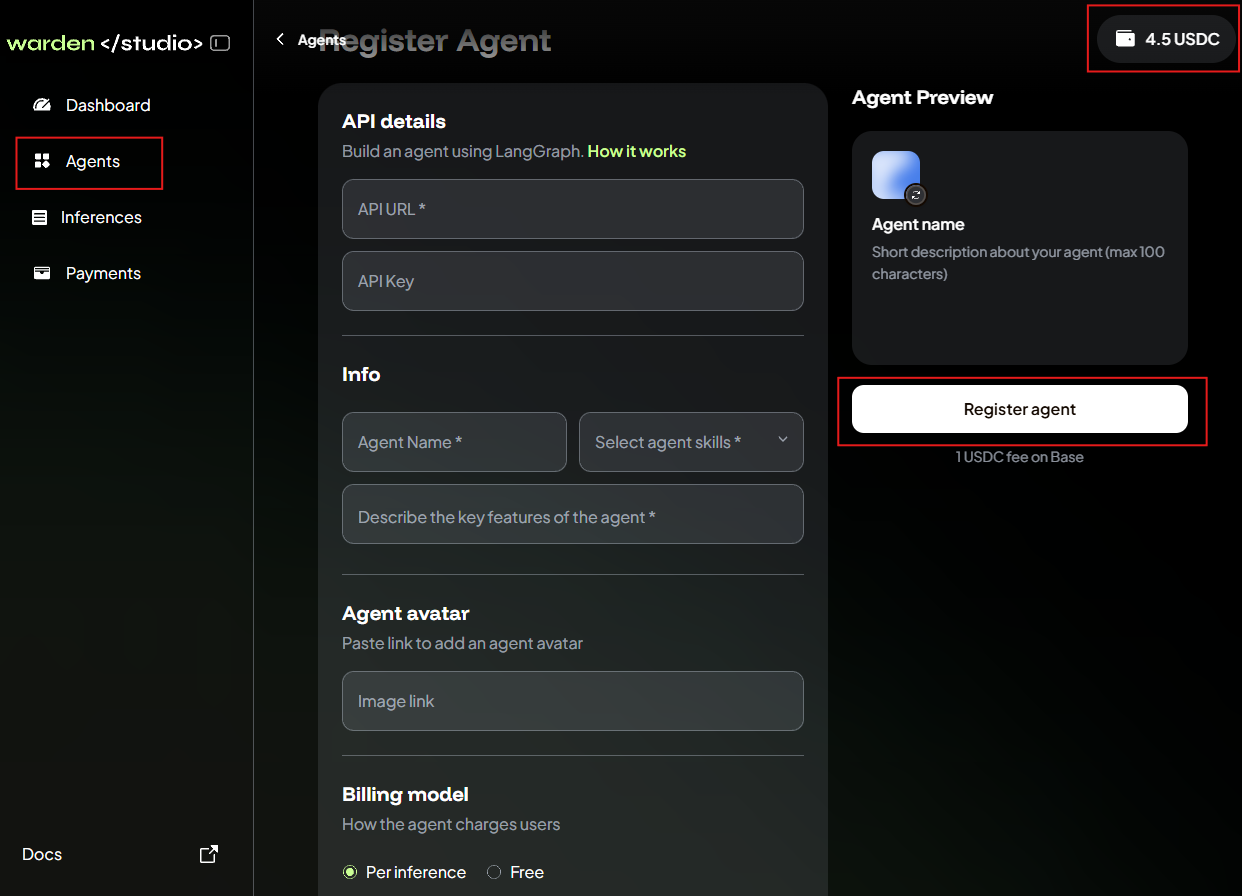
- Your developer account will automatically connect to your Warden account. Click the wallet icon at the top right and make sure there is at least 1 USDC.
- In the left menu, open the Agents section.
- Click Register.
- Provide the required details:
- Your Agent's API URL and API key
- The name, description, skills, and avatar
- The preferred billing model (per inference or free)
- Click Register agent and wait.
If everything is fine, your Agent will soon appear on the Agents section in Warden Studio. You'll also see the Agent on Warden: just open the Agent Hub and check the Community tab.
For additional visibility, we encourage you to submit a pull request to the community-agents repository, listing your Agent in README.md.
Monitor your Agent
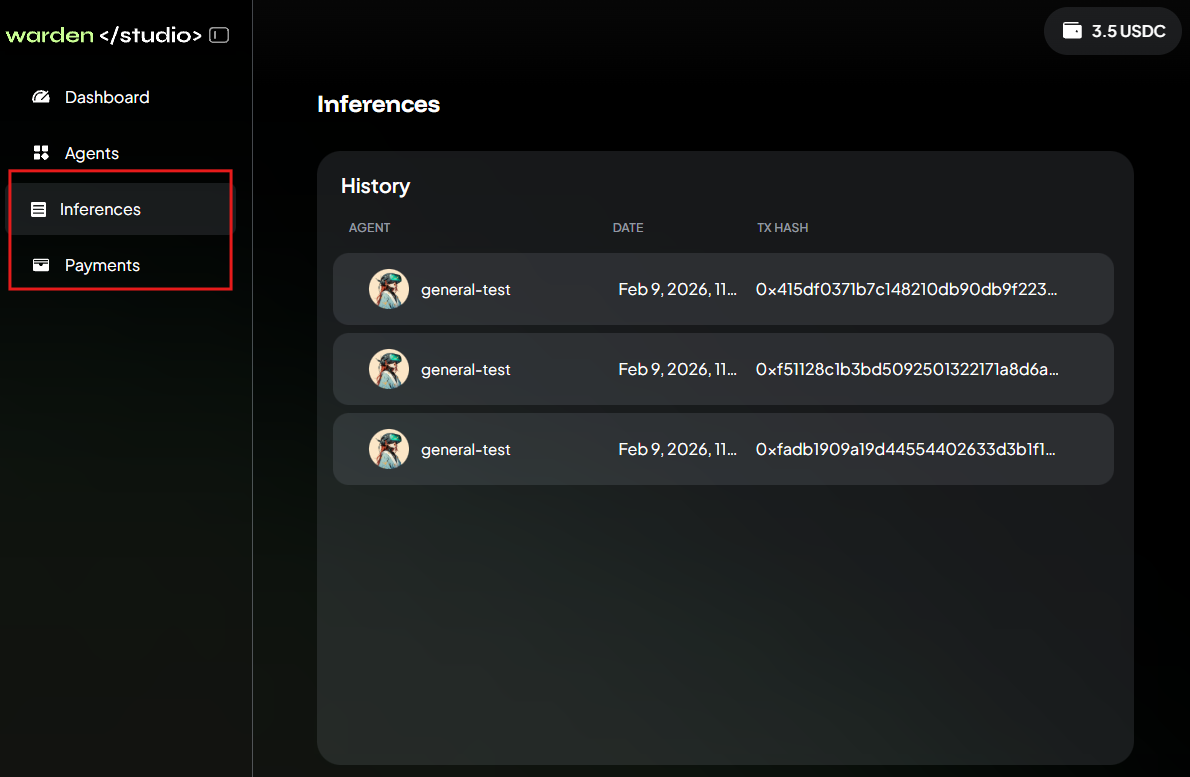
You can monitor inferences and payments to your Agent.
Just check the following sections in Warden Studio:
- Inferences
- Payments
Manage your Agent
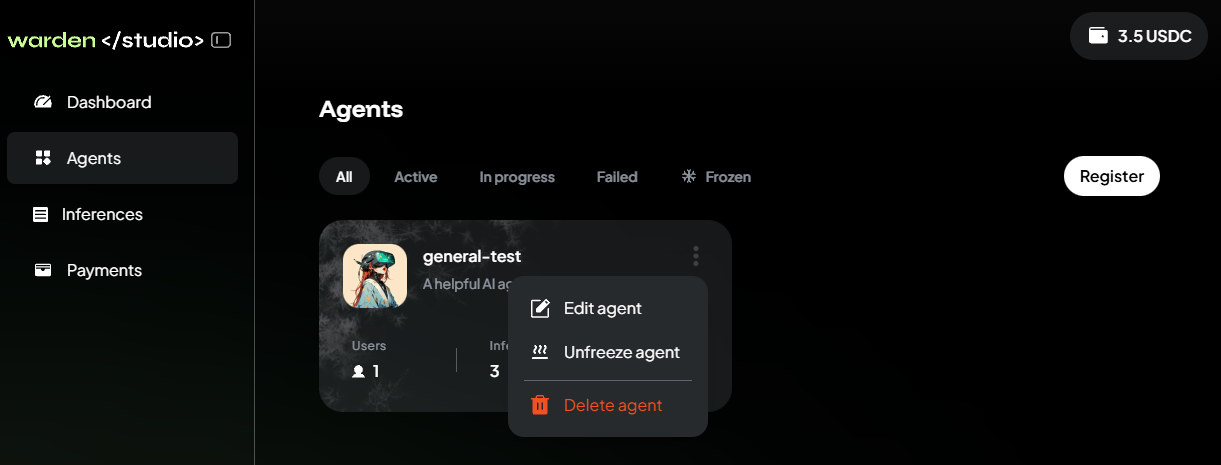
After publishing an Agent, you can edit, freeze/unfreeze, and delete it:
- Log in: 👉 Warden Studio
- In the left menu, select Agents.
- Click the three-dot menu on your Agent's card.
- Select one of the available options:
- Edit to update the Agent's details, image, and fee.
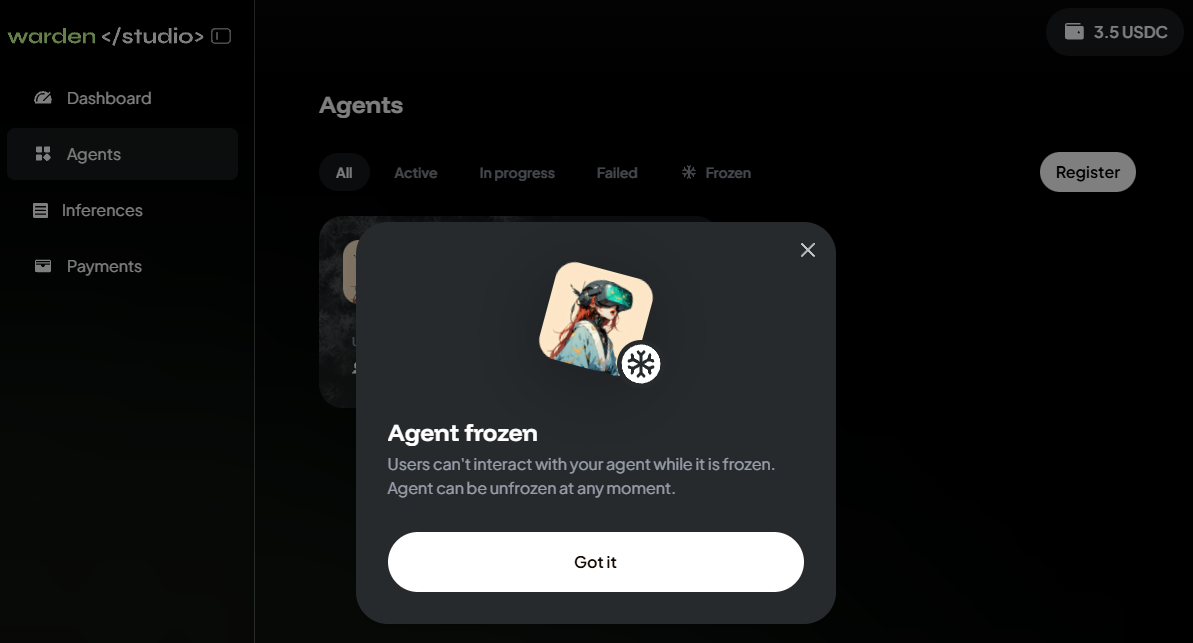
- Freeze/unfreeze to deactivate/activate the Agent.
- Delete to completely remove your Agent from Warden.
- You can't edit the API URL. To add a new URL, register a new Agent.
- Users can't interact with frozen Agent or see them in the Agent Hub.
Manage your account
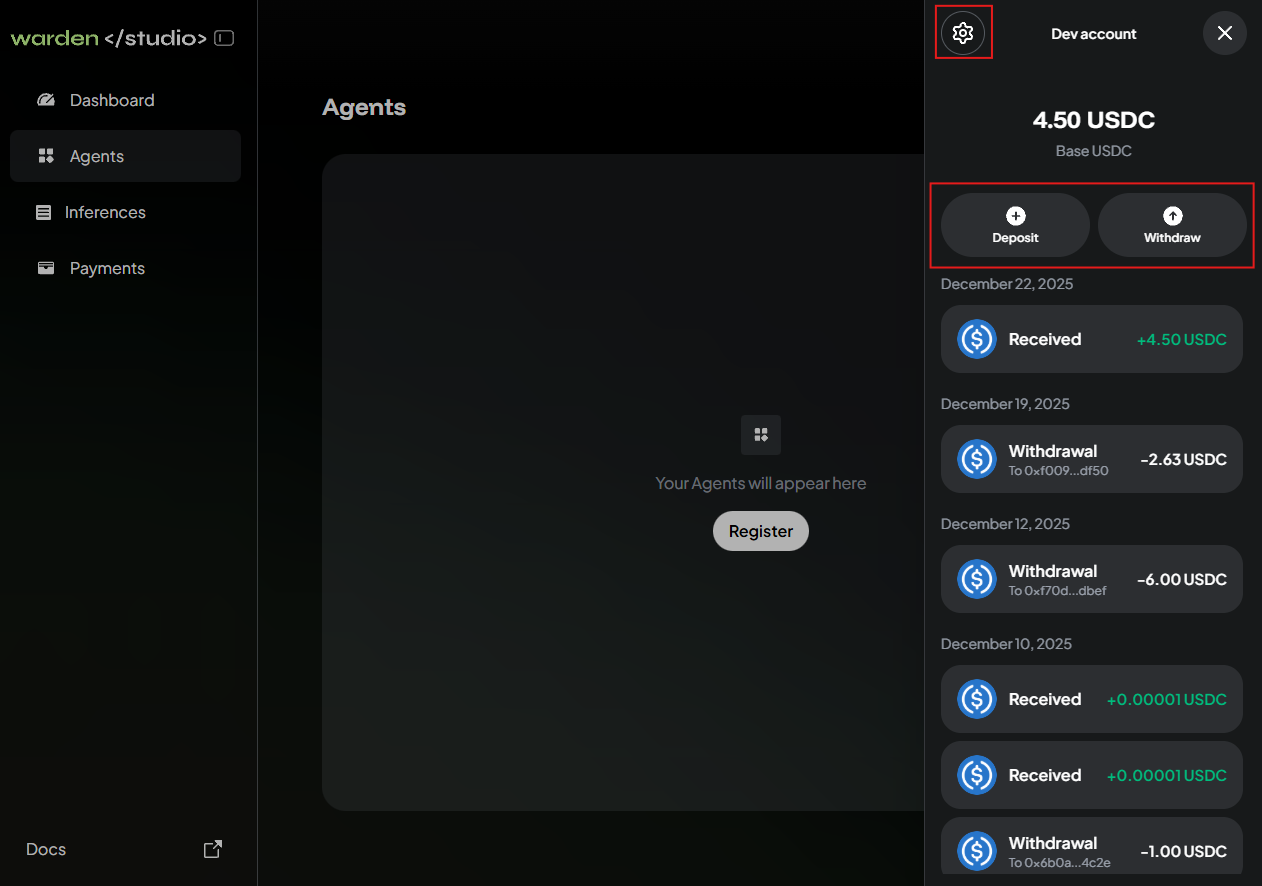
You can also manage your developer account—a wallet for paying the Agent registration fee and receiving payments from users:
- Log in: 👉 Warden Studio
- Click the wallet icon at the top right to access your dev account.
- Manage the wallet:
- To deposit funds, click Deposit.
- To withdraw funds, click Withdraw.
- To configure, click the gear icon at the top. You can manage the appearance, security, and login settings.
Once you log in, the developer account automatically connects with your Warden account using the same credentials but displays only USDC on Base.